
Standard XML Schema
The Technical Documentation Application includes a default schema that defines a document structure called Standard. It is possible to customize this schema as well as develop additional custom schemas to meet business requirements.
Note: If it is necessary to modify the configuration provides by the default Standard Document Type, it is preferable to copy the entire Document Type and use that. This is to eliminate the possibility of future changes to the Standard Document Type conflicting with customizations or changes.
Note: For more information on how to use the Technical Documentation Editor, see Aras Technical Documentation – User Guide for reference.
The Standard schema implements the following structure:
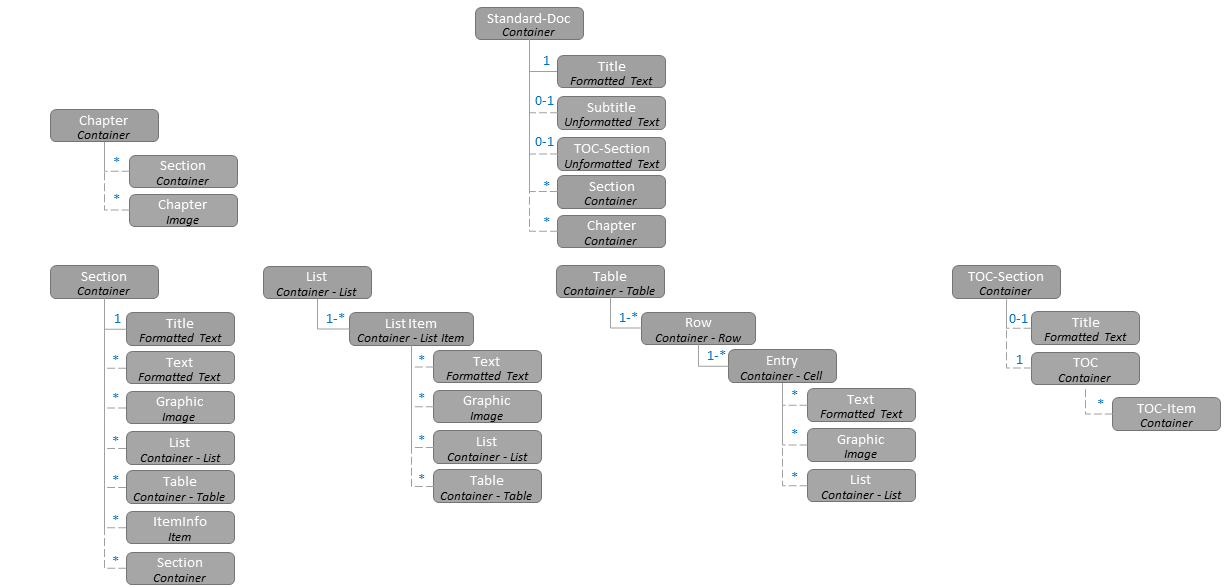
Figure 1. Standard Document Type
XML Schema
To understand how XML schema is used, it is helpful to discuss a portion of the schema provided with the ‘Standard’ Document Type, which is included by default.
<xs:element name="Standard-Doc">
<xs:complexType>
<xs:sequence>
<xs:element ref="Title"/>
<xs:element ref="Subtitle" minOccurs="0" maxOccurs="1"/>
<xs:element ref="TOC-Section" minOccurs="0" maxOccurs="1"/>
<xs:choice>
<xs:element ref="Section" minOccurs="0" maxOccurs="unbounded"/>
<xs:element ref="Chapter" minOccurs="0" maxOccurs="unbounded"/>
</xs:choice>
</xs:sequence>
</xs:complexType>
</xs:element>
The top-most schema element with name ‘Standard-Doc’ is essentially a container for the content defined within it. For Document Types, content within another schema element is either defined as a sequence or a choice. In the XML Schema definition, a sequence is an ordered list, and a choice is unordered.
Note: There are other restrictions for using either <xs:sequence> or <xs:choice> that are not covered in this document.
Each schema element for a complex type is defined within either a sequence or choice and can have specific cardinality defined, which identifies the minimum and maximum number of XML Elements allowed. Minimum and Maximum counts are defined by the minOccurs and maxOccurs attributes respectively. Undefined min/maxOccurs attributes default to the value ‘1’. In this case, and XML Element with name ‘Standard-Doc’ can have, as children, the following XML Elements:
-
A single, required ‘Title’ XML Element, followed by
-
An optional ‘Subtitle’ XML Element, followed by
-
An optional ‘TOC-Section’ XML Element (see Section ), followed by either
-
0 or more ‘Section’ XML Elements or
-
0 or more ‘Chapter’ XML Elements
Each of the XML Elements in this example is defined in another portion of the XML Schema. XML Schema ‘structures’ defined in this manner thus define the structure of the corresponding content in a Technical Document. The following example shows what content using this schema might look like. Note that the content for a ‘Chapter’ XML Element was not described above but is included in the Standard Document Type.
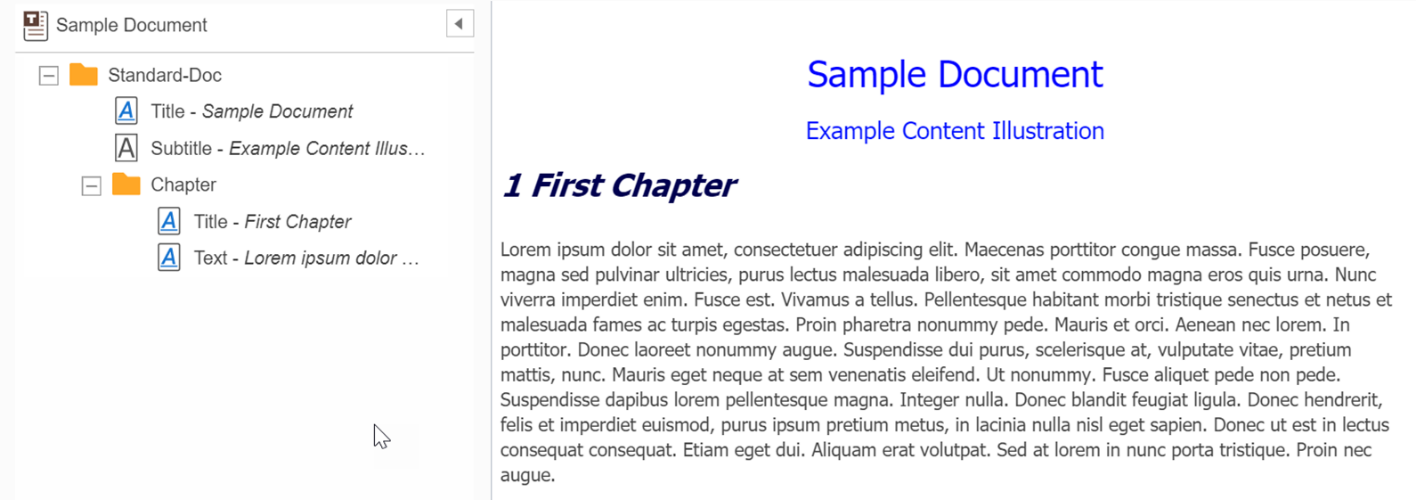
Figure 3: Sample Content from Standard Document Type
Document Element Types
XML Elements defined within the XML Schema for a Document Type can be configured to extend XML Elements defined by the system. In this way these Document Elements are processed differently and provide additional functionality within the Technical Document Editor. This section describes each of the Document Element Types.
Container Elements
The simplest Document Element is identified as a ‘Container Element’ because it is used specifically to contain other Document Elements and thus has no other special processing by the Editor. ‘Standard-Doc’ is an example of this type. ‘Section’, ‘Chapter’, and ‘Graphic-Block’ are also examples of Container Elements defined in the ‘Standard’ Document Type. Note that many of the other Document Types defined in this section are also used to contain other content, but they have additional qualities and are thus processed differently by the Editor.
Item Elements
Item Document Elements are used to associate content within a Technical Document with a separate Item (Business Object). Typically, Item Document Elements also have a Content Generator (Section Content Generation) defined so that the Item Document Element’s content can be automatically generated based on information extracted from the associated Item. This type of association is critical to a Digital Thread and helps maintain a link between technical documentation and the business objects it describes.
Once a Document Element is created, the system will prompt the author to select the referenced Item and a relationship will be created between that selected Item and the Technical Document Item in which the Item Document Element was placed. To illustrate this process, the following example of an Item Document Element is described:
<xs:element name="PartData">
<xs:complexType>
<xs:complexContent>
<xs:extension base="aras:itemType">
<xs:choice maxOccurs="1">
<xs:element ref="Table" minOccurs="0" maxOccurs="1"/>
</xs:choice>
<xs:attribute name="typeId" type="xs:string" fixed="<Part ItemType Id>"/>
</xs:extension>
</xs:complexContent>
</xs:complexType>
</xs:element>
This example describes a ‘PartData’ Item Document Element. Item Document Elements extend the aras:itemType XML Element. This example defines a single child Document Element – Table. In addition, the XML Attribute typeId is used to fix the associated/referenced ItemType to a Part ItemType.
Note: Defining the typeId is optional. If it is not defined the ItemType of the referenced Item can be any of the PolySources defined within tp_Item. The value of the fixed attribute must be the ItemType ID of one of the PolySources configured.
When placing an Item Document Element, the author has a choice to either choose an existing Item or create a new one.
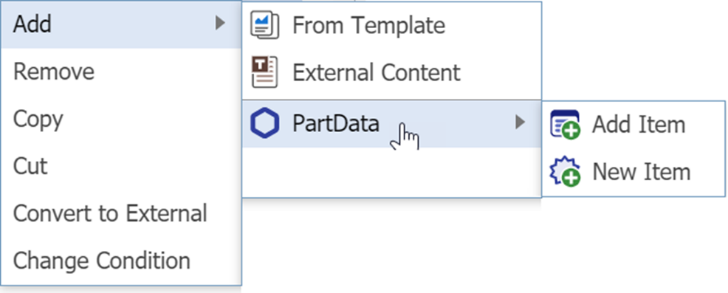
Figure 4: Adding an Item Document Element
If the author chooses ‘Add Item’, the system will display a search dialog to choose a specific Item. If the typeId is used in the schema, only ItemTypes corresponding to the ItemType id specified will be displayed. Otherwise, the user can select the specific ItemType or search all.
If the author chooses ‘New Item’, the system will display the Form of the ItemType so that the Property values can be specified before the Item is created. If the typeId is not specified in the schema, the author will first need to select the specific ItemType to be created.
Authors can change the referenced Item for existing Item Document Elements with either a different, existing Item or based on a newly created Item. The functionality is like ‘Add’ and ‘New’ as defined above respectively.
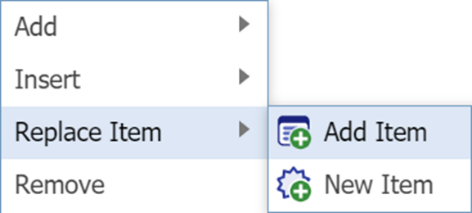
Figure 5: Replacing a Referenced Item
Text Elements
Text Document Elements are used for textual data. Text Document Elements can either be formatted or non-formatted. Formatted Text Document Elements can have text content within them formatted with a limited set of options. Unformatted Text Document Element do not have formatting options.
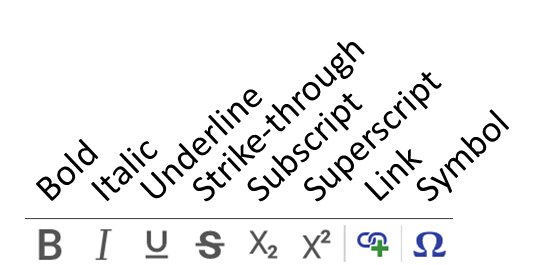
Figure 6: Formatted Text Options
Note: The intent for Technical Documentation is to have the format of content be managed by CSS Styles as much as practical. This establishes consistency across all technical documents that are based on the same Document Type.
The following example shows two types of Text Document Elements.
<xs:element name="Subtitle">
<xs:complexType mixed="true"/>
</xs:element>
<xs:element name="Text">
<xs:complexType>
<xs:complexContent>
<xs:extension base="aras:text"/>
</xs:complexContent>
</xs:complexType>
</xs:element>
In this example the ‘Subtitle’ Document Element is unformatted, and the ‘Text’ Document Element is formatted. Unformatted Text Document Elements are defined as a complex type with the mixed attribute set to ‘true’. Formatted Document Elements extend the aras:text XML Element.
Note: The Technical Document Editor will attempt to place a Text Document Element whenever the user has selected some Container Document Element (Container, Cell, List Item, etc.) and types a character. At this point, the system will search for any child Document Element of type Text allowed by the schema, insert a new instance of that Text Document Element, apply the characters typed by the user, and place the cursor at the end for further text input.
Image Elements
Image Document Elements are used to place 2D images in a Technical Document. All Image Document Elements use the tp_Image ItemType to contain the 2D image file and are thus independently managed.
When a user places an Image Document Element, the system will display a Search Dialog for Items of type tp_Image (Graphic). Like Item Document Elements, an author can either select an existing Graphic Item or create a new Item. In the latter case, the system will present a Form for the author to enter necessary Properties before the new Graphic Item is created. Referenced Graphic Items will have a Relationship Item generated between the Graphic Item and the Technical Document Item in which the Image Document Element was placed.
The following example shows an Image Document Element schema definition:
<xs:element name="Graphic">
<xs:complexType>
<xs:complexContent>
<xs:extension base="aras:imageType"/>
</xs:complexContent>
</xs:complexType>
</xs:element>
In this example, the ‘Graphic’ Image Document Element is created. Image Document Elements must extend the aras:ImageType XML Element.
Note: Authors can also insert new Graphic Items by pasting an Image from the clipboard. If a Document is selected in the Technical Document Editor that allows a following sibling Image Document Element of any name defined in the schema, the system will automatically create a Graphic Item using the Item Reference Configuration (see section Item Reference Configuration) to automatically populate required Graphic Item Properties and upload the image in the clipboard as File Item to the vault.
Mapped Properties
Mapped Property Document Elements are a type of Unformatted Text Document Element that are used to reference a Property of an Item referenced by an ancestor Item Document Element. These are also referred to as Item Property Document Elements. When authors place instances of a Mapped Property Document Element, the system will automatically apply the content of the associated Property of the referenced Item.
In the following example, a ‘ShippingInformation’ Item Document Element contains ‘LineItem’ Container Document Elements, which contain a single ‘Text’ (Formatted Text Document Element) and a ‘ShipProperty’ Mapped Document Element:
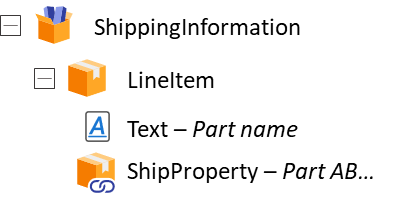
Figure 7: Mapped Property Example
The corresponding XML Schema would be specified as follows:
<xs:element name="ShippingInformation">
<xs:complexType>
<xs:complexContent>
<xs:extension base="aras:itemType">
<xs:choice maxOccurs="1">
<xs:element ref="LineItem" minOccurs="1" maxOccurs="unbounded"/>
</xs:choice>
<xs:attribute name="typeId" type="xs:string" fixed="<ItemType Id>"/>
</xs:extension>
</xs:complexContent>
</xs:complexType>
</xs:element>
<xs:element name="LineItem">
<xs:complexType>
<xs:sequence>
<xs:element ref="Text" minOccurs="1" maxOccurs="1"/>
<xs:element ref="ShipProperty" minOccurs="1" maxOccurs="1"/>
</xs:sequence>
</xs:complexType>
</xs:element>
<xs:element name="ShipProperty">
<xs:complexType>
<xs:complexContent>
<xs:extension base="aras:itemProperty">
<xs:attribute name="property" type="xs:string" fixed="name"/>
<xs:attribute name="mode" type="aras:itemPropertyModeEnum" fixed="read"/>
</xs:extension>
</xs:complexContent>
</xs:complexType>
</xs:element>
The example illustrates a possible scenario in which Shipping Information is maintained within a separate Item (Business Object). In this case, there may be several Properties related to the shipping information managed. Using Item Document Elements with Mapped Property Document Elements in this manner provide a convenient mechanism to automatically populate content in a technical document when these Document Elements are placed manually and update the content dynamically when the referenced Item is changed. See Section for a description of the Item Document Element.
The ‘ShippingInformation’ XML Element extends aras:itemType, is fixed to refer to an ItemType (presumably containing Shipping Information), and contains a single ‘LineItem’ Container Document Element. The ‘LineItem’ Container Document Element contains a single Text Document Element - ‘Text’ - and a single Mapped Property Document Element – ‘ShipProperty’ – which extends aras:itemProperty. The ‘ShipProperty’ Mapped Property Document Element is configured with two, optional Attributes: ‘property’ and ‘mode’.
Note: The ‘property’ Attribute specifies the name of the Property to reference. The association between a Mapped Property Document Element and an Item Property is by the Property’s name. This association is loose, in that any ItemType with the same Property name will result in a mapping. Since referenced Items are associated via a PolySource, mapping by name allows the reference to ‘float’ to different ItemTypes.
Note: The ‘mode’ Attribute specifies whether the reference Item Property is editable. A Mode value of ‘read’ specifies that the Property is read-only. A Mode value of ‘write’ specifies that the Property of the referenced Item can be updated based on changes in the technical document.
If the ‘property’ Attribute is configured, it can specify the default Property name to map to (using the ‘default’ attribute) or fix the value using the ‘fixed’ attribute. If the ‘property’ Attribute is not configured, authors can manually specify the Property to map using the Attributes Dialog:
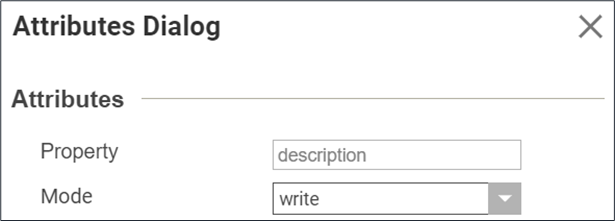
Figure 8: Attributes Dialog for Mapped Property Document Elements
If the ‘mode’ Attribute is configured, it can specify the default Property mode (using the ‘default’ attribute) or fix the value to either ‘read’ or ‘write’ using the ‘fixed’ attribute. If the ‘property’ Attribute is not configured, authors can manually specify the Property to map using the Attributes Dialog. Fixed values for these of these two Attributes will disable the ability to change them in the Attributes Dialog.
Mapped Property Document Elements are edited using a pop-up Form in the Technical Document Editor. To edit a value, select the Document Element in the Editor or Tree View and/or double-click to display the Property Editor Form. Document Elements with a grey, dotted border can be edited. Document Elements with a red, solid border are read-only. For example:
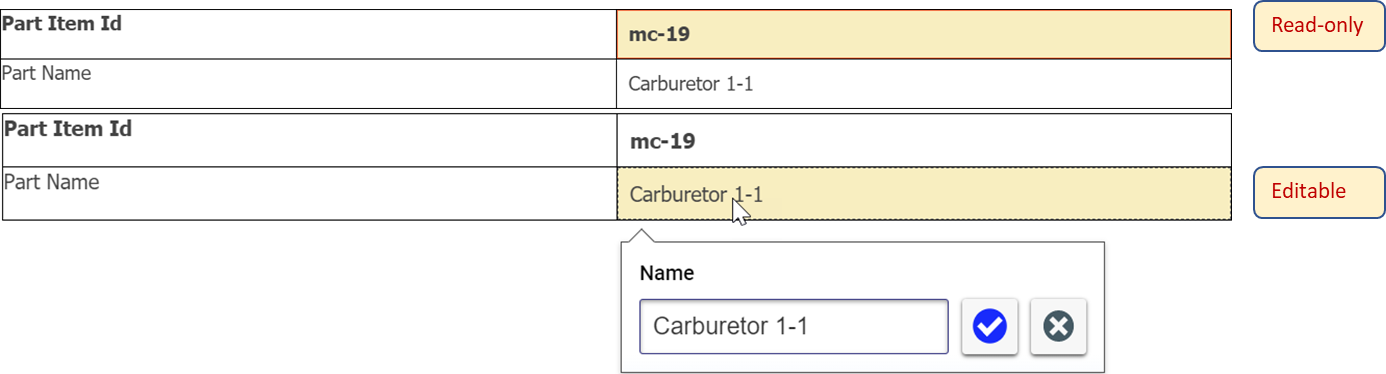
Figure 9: Mapped Property Editor Form
Values can only be changed using this Form. Selecting the ‘Check’ button will update the Mapped Property Document Element in the technical Document only. Authors will see a pencil icon ( ), signifying that the Property of the referenced Item has not been updated, next to the Document Element in the Tree View. The referenced Item will be updated when the technical document is saved, in which case the pencil icon will be hidden. Selecting the ‘X’ button will cancel the update without any changes to the technical document.
Note: Selecting the pencil icon ( ) in the Tree View will prompt the author with a Dialog to discard the updated Property. In this case selecting ‘OK’ will revert the modified Property(ies) to their previous value.
The following Property Value Types are supported:
-
String
-
Text
-
Numeric (Integer, Decimal, etc.)
-
Date
-
Boolean
-
Item
-
List
-
Image (Display only - Editor not available)
The Edit Field in the Property Edit Form is based on the Property Type. For Text and Numeric Fields, an attempt to set a value that does not match the type will result in an Error being displayed in a Dialog.
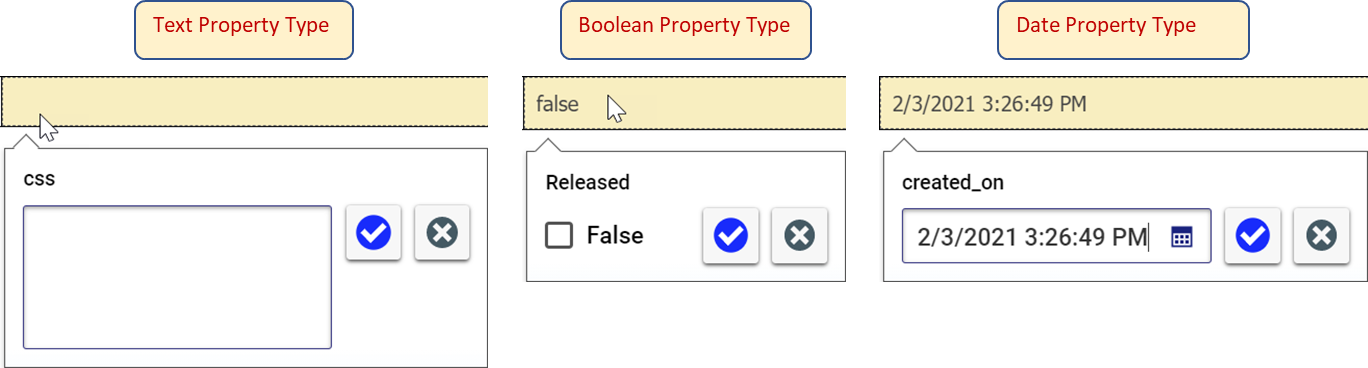
Figure 11: Mapped Property Edit Forms
Modifying a versionable Item vis-à-vis Mapped Property Document Elements will result in the referenced Item to be versioned automatically. Since Technical Documents reference Items via fixed Relationships, the Item Document Element will show as stale since it will refer to the previous generation of the Item.
Table Document Element
Table Document Elements are used to group content in a tabular format. Document Elements that are configured as Tables have additional functionality provided in the Technical Document Editor to provide the ability to add columns, rows, merge cells, etc. Thus Tables, Rows, and Cell Document Element are a type of Container Document Element, but with extended capability.
Note: It is possible to display content in a Technical Document as a Table without extending the Table and related Row or Cell XML Element Types using CSS Flex Box for example, but these Elements will not have the additional Table functions.
Configuring a Document Element as a Table requires corresponding Document Elements for Rows and Cells. Table Document Elements can be nested within other Table Document Elements. The following is an example of a Table Configuration in XML Schema:
<xs:element name="Table">
<xs:complexType>
<xs:complexContent>
<xs:extension base="aras:table"/>
</xs:complexContent>
</xs:complexType>
</xs:element>
<xs:element name="Row" substitutionGroup="aras:tablerow">
<xs:complexType>
<xs:complexContent>
<xs:extension base="aras:tr"/>
</xs:complexContent>
</xs:complexType>
</xs:element>
<xs:element name="Entry" substitutionGroup="aras:tablecell">
<xs:complexType>
<xs:complexContent>
<xs:extension base="aras:td">
<xs:choice minOccurs="0" maxOccurs="unbounded">
<xs:element ref="Text" minOccurs="0" maxOccurs="unbounded"/>
<xs:element ref="List"/>
<xs:element ref="Graphic"/>
<xs:element ref="Table"/>
</xs:choice>
</xs:extension>
</xs:complexContent>
</xs:complexType>
</xs:element>
Table Document Elements extend the aras:table XML Element. Table Document Elements must contain Row Document Elements as their only child element. Likewise, Row Document Elements must contain Cell Document Elements as their only child element. Cell Document Elements can contain other types of content, including other Tables as specified above. Row Document Elements extend the aras:tr XML Element. Cell Document Elements extend the aras:td XML Element.
Note: The XML Schema file Aras.xsd contains the core XML Schema for Technical Documentation. The schema file defines aras:tablerow and aras:tablecell, shown as substitution groups in the example above.
Note: The Technical Document Editor will attempt to place a Text Document Element whenever the user has selected some Container Document Element (Container, Cell, List Item, etc.) and types a character. At this point, the system will search for any child Document Element of type Text allowed by the schema, insert a new instance of that Text Document Element, apply the characters typed by the user, and place the cursor at the end for further text input.
Warning There can only be one Table, Row, and Cell Document Element defined in a Document Type.
List Document Element
List Document Elements are used to group content in a sequential list format. Document Elements that are configured as Lists have additional functionality provided in the Technical Document Editor to provide the ability to set the individual List Items as bulleted, numeric, or alpha. Thus Lists, and List Item Document Elements are a type of Container Document Element, but with extended capability.
Note: It is possible to display content in a Technical Document as a List without extending the List and related List Item XML Element Types using CSS display=’list-item’ for example, but these Elements will not have the core functionality to set the bullet, numeric or alpha capability.
Configuring a Document Element as a List requires corresponding Document Elements for List Items. There can be multiple List Document Elements defined and it is possible to nest Lists within Lists. The following is an example of a List Configuration in XML Schema:
<xs:element name="List">
<xs:complexType>
<xs:complexContent>
<xs:extension base="aras:list">
<xs:choice maxOccurs="unbounded">
<xs:element ref="List-Item" minOccurs="1" maxOccurs="unbounded"/>
</xs:choice>
</xs:extension>
</xs:complexContent>
</xs:complexType>
</xs:element>
<xs:element name="List-Item">
<xs:complexType>
<xs:complexContent>
<xs:extension base="aras:listitemType">
<xs:choice maxOccurs="unbounded">
<xs:element ref="Text" />
<xs:element ref="Graphic"/>
<xs:element ref="List"/>
</xs:choice>
</xs:extension>
</xs:complexContent>
</xs:complexType>
</xs:element>
List Document Elements extend the aras:list XML Element. List Document Elements must contain List Item Document Elements as their only child element. List Item Document Elements can contain other types of content, including other Lists as specified above. List Item Document Element extend the aras:listitemType XML Element.
Note: The default List Document Element specifies at least one child List Item Document Element, as shown in the example above. When there is a single child Document Element that is required, the system will automatically place the child Document Element. For this List example, when the user places a List, the system will automatically insert the first List Item Document Element.
Note: The Technical Document Editor will attempt to place a Text Document Element whenever the user has selected some Container Document Element (Container, Cell, List Item, etc.) and types a character. At this point, the system will search for any child Document Element of type Text allowed by the schema, insert a new instance of that Text Document Element, apply the characters typed by the user, and place the cursor at the end for further text input.
Schema Validation
The Document Type Form uses a Text Editor to display and edit the XML Schema definition. This Editor has been configured specifically for XML Schema to highlight XML keywords and show validation errors/warnings with indicators of such on the corresponding line in the User Interface. The XML Schema is validated as the user edits the content and when the user Saves the Document Type Item. If there are any warnings or errors, the user is prompted with a message. It is not possible to save a Document Type Item if there are schema errors. This is to prevent the inadvertent use of the schema if it is not valid.
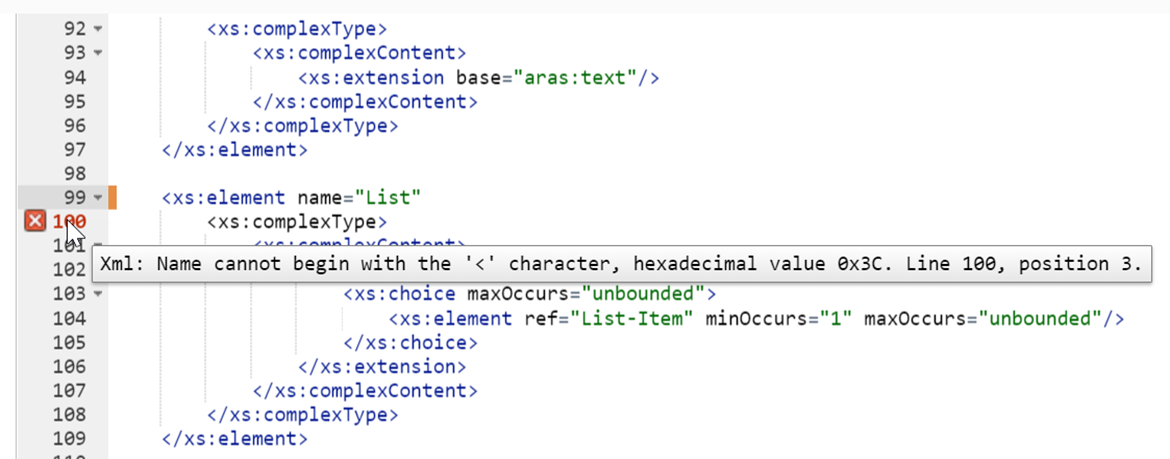
Figure 12: XML Schema Validation Warning
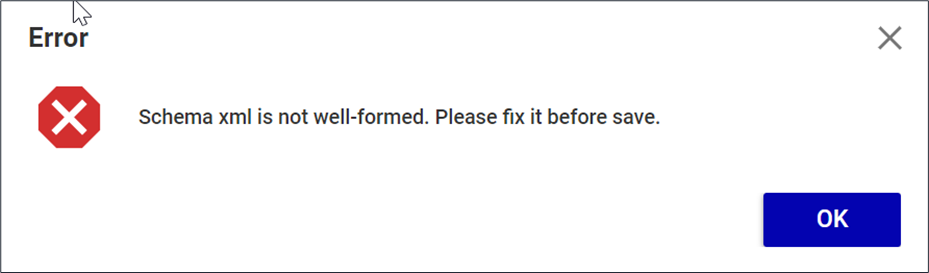
Figure 13: XML Schema Validation Error Dialog
Document Element Configuration
For each Document Element, the Technical Document Framework provides the ability to configure Content Generators (Section Content Generation), Methods to prepopulate and validate Properties on referenced Items (Section Item Reference Configuration), custom Tree Node Renders, and the default action for specific Classifications of Technical Document Enabled Items. These configuration options extend the default behavior of Document Element Types.
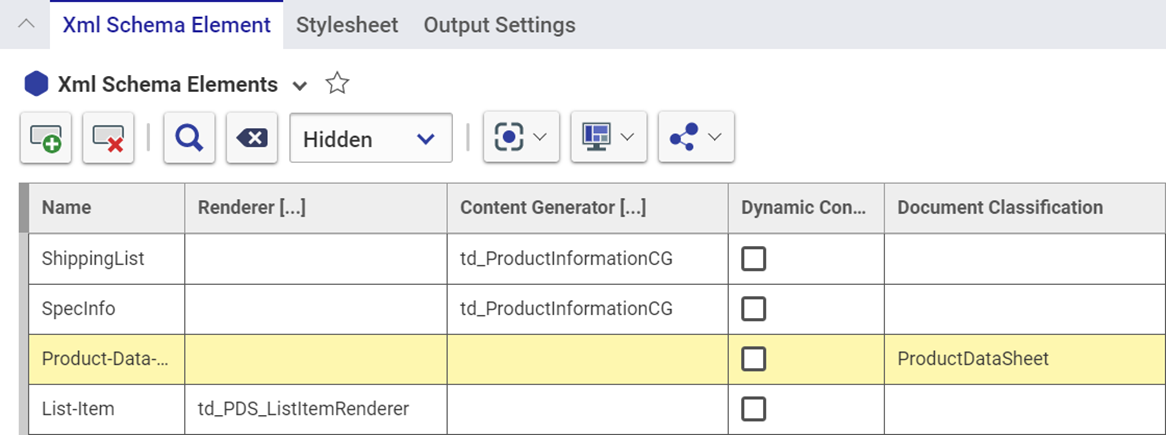
Figure 14: Document Element Configuration User Interface
Document Element configuration is specified using XML Schema Element Items. References to these Items are added in the Document Type Form. For each XML Schema Element Item, the associated Document Element is identified by Name. It is important that the spelling of the name match what is defined for the XML Element in the XML Schema. The Renderer identifies the JavaScript Method that is used as an alternative to the default logic for populating the Tree Node Icon and Text. The Content Generator identifies the C# Server-side Method that is called whenever an instance of the corresponding Document Element is placed in a Technical Document or when it is refreshed. The Dynamic Content checkbox determines how often a configured Content Generator is executed. When False, the Content Generator is only executed when the Document Element is first created or when it is manually refreshed in the Technical Document Editor. When True, the Content Generator is additionally executed whenever the Technical Document is opened or saved. Document Classification associates the Document Element with a Classification for the Technical Document Enabled Item. When the Technical Document Enabled Item is first created, with a specified Classification, the system will automatically add the Document Element as the root. In this case, only a single root element is allowed for this technical document.